
Tabla de contenido
If you got here wondering ‘Why isn’t my WordPress website appearing on Google?’, the frustration is understandable. You created a site, worked on its content, and when you searched for your own name, Google doesn’t seem to know that you exist. This problem, although common, has a solution. In 99% of cases, the invisibility in search results is due to a specific and correctable technical block.
This article is your ultimate diagnostic guide. We will take you, step by step, through the 12 most frequent causes that prevent Google from indexing your site WordPress, and we will provide you with the clear and actionable solutions to fix it.
🔍 Initial Diagnosis: Is your site really ‘invisible’?
Before immersing yourself in technical solutions, make these two quick checks to understand the magnitude of the problem:
- search with
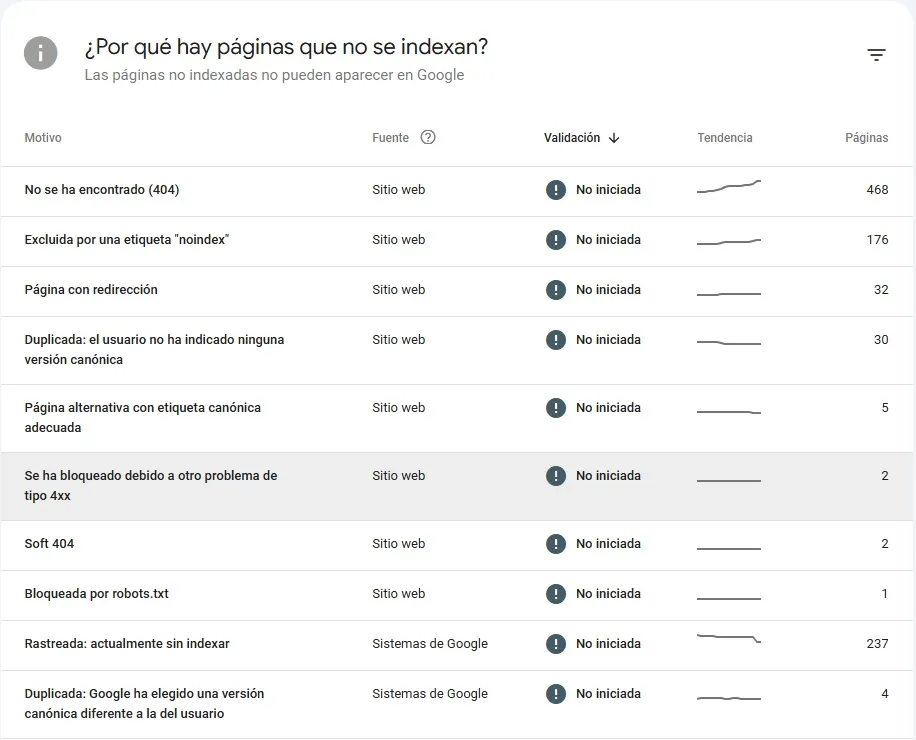
SITE:: On Google, typesite:tudomain.com(replace with your real domain). If some pages appear, Your site is partially indexed. The problem can be tracking or content. If nothing appears, there is likely a severe technical block. - Consultation Google Search Console (GSC): This is the most important tool for this diagnosis. If you have not configured it, it is your first mandatory step. In GSC, go to ‘Index’ > ‘Pages’. There, the section ‘Why the pages are not indexed‘ It’s your main source of truth, listing the specific errors that Google found.
The 12 causes and their solutions step by step
1. The WordPress settings that ‘discriminate’ to search engines 🚫
The problem: In the panel WordPress, there is an option designed for developing sites that, if activated, Block indexing from the entire site. It is surprisingly common that it is activated by mistake when launching the site.
How to fix it:
- go to Settings > Reading On your WordPress desktop.
- Scroll to the end and Make sure the ‘Ask search engines that do not index this site’ box is not checked.
- Click ‘Save Changes’.
- Clean the cache of your site and your cache plugin (if you use one) for the change to take effect immediately.
2. The file robots.txt Blocking Google Robot Access 🤖
The problem: the file robots.txt Acts like a traffic light for Google trackers. a single wrong line, like DISALLOW: /, can prohibit access to your entire site. It is also vital not to block CSS or JS resources, as Google needs to see your site correctly to index it. Sometimes the problem is not the content of the file, but the server blocks it, preventing Google from reading it.
How to diagnose and fix it:
- Access your file by visiting
https://tudomain.com/robots.txt. - Find lines that block critical folders like
/wp-admin/(this is fine), but There should never be aDISALLOW: /general. - Important: Also check that you
robots.txtDo not block resources like CSS or JavaScript (/wp-content/themes/, ,/wp-content/plugins/). If you do, Google won’t be able to ‘see’ your site correctly and can ignore it. - To edit it securely, use an SEO plugin like Yoast SEO or Rank Math, which include visual editors for this file.
3. The label noindex Hide in your code
The problem: The label noindex It is a direct instruction for search engines to skip a page. It can be activated globally by a poorly configured SEO plugin, on individual pages, or even inserted by the theme of your site.
How to fix it:
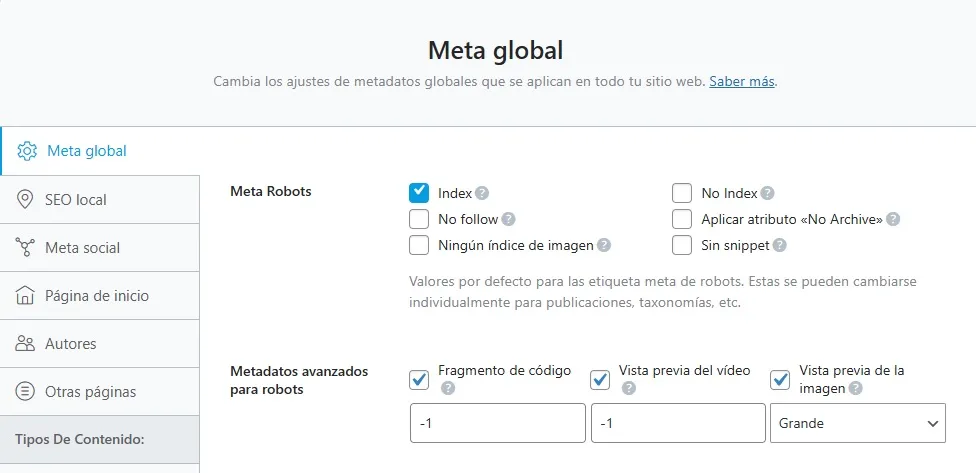
- Check the global settings of your SEO plugin: In plugins like Rank Math or Yoast SEO, navigate to its general settings (often ‘Search Appearance’) and make sure the indexing option is enabled for the main content types (entries, pages).
- Check every important page: When editing a page, scroll to the meta box of your SEO plugin (usually under the editor). On the ‘Advanced’ tab, check that the option ‘Allow search engines to show this in the results‘Be in’Yes‘.
- Manual verification: Right click on the public web page and select ‘View Source Code’. look for (
Ctrl+F) ‘noindex’. If it appears on a robot meta tag, that is the cause.
4. A non-existent, incorrect or not sent XML Sitemap 🗺️
The problem: The Sitemap is the map you give to Google to find all your important pages. Without it, or with a broken one, Google can take much longer to discover your content or you can ignore key pages.
How to fix it:
- Generate a sitemap: Use your SEO plugin (Yoast, , Rank Math, , All In One Seo) to generate it. It is usually found in
https://tudomain.com/sitemap_index.xml. - Send it to Google: in Google Search Console, go to ‘Sitemaps‘ In the side menu. Enter the URL of your sitemap and click ‘Send’.
- Fix common errors: If GSC reports errors in the sitemap, make sure it does not include non-indexable URLs (like cart) or pointing to an incorrect domain (like an HTTP version instead of HTTPS).
5. Tracking errors in Google Search Console 🚧
Google Search Console It is your control center. These are the most common messages and what to do:
| Error in GSC | What does it mean? | corrective action |
|---|---|---|
| Excluded by tagnoindex | Google found and is obeying a tag noindex. | Follow the steps in cause #3 to remove it. |
| Duplicate, no user-selected canonical | Google found very similar content in various URLs and does not know which is the main one. | Use your SEO plugin to set a URL canonical (Preferred version) on each page. |
| Blocked by robots.txt | The file robots.txt explicitly prevents tracing of that URL. | Check and correct your robots.txt as in cause #2. |
| not found (404) | The URL does not exist. It can be due to a broken link or a deleted page. | If the page is important, restore it or redirect the URL (301) to a relevant page. If not, leave it as 404. |
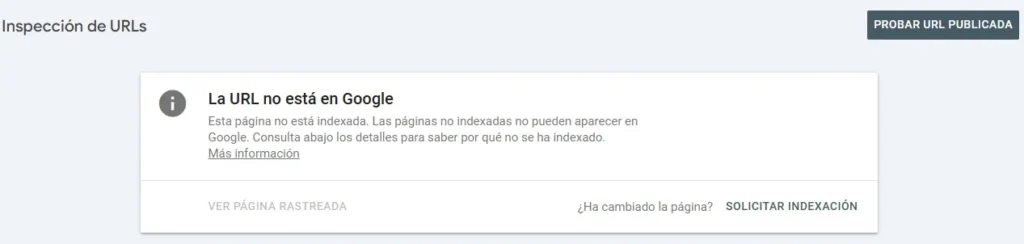
| Tracked – currently not indexed | Google saw the page, but He decided not to index her, often due to lack of perceived value or because it is a secondary URL. | Improves the quality and uniqueness of the content. For important pages, use the ‘URL Inspection Tool’ in GSC to request manual indexing. |
6. Duplicate or very low quality content (‘Thin Content’) 📄
The problem: Google prioritizes useful and unique content. If your pages have little text, they are copied From other sources (including AI-generated content without supervision) or are merely worthless tag or category pages, Google may decide not to index them.
How to fix it:
- Audit your content: Review pages with less than 300 words. Do they bring real value? If not, expand or combine them.
- Control the files: On your SEO plugin, set the pages of Category to be indexedbut consider putting
noindexOn the tag pages to avoid duplicate content. - Avoid attachment pages: Redirects the image attachment pages (e.g.,
tusitio.com/?attachment_id=123) to the real image or to the main post.
7. Google Manual Penalties ⚠️
The problem: If you seriously violated the Google guidelines (with Spam, artificial links purchased, hacked content, or misleading practices), Google can apply a manual penalty that removes your entire site or parts of it from the index.
How to diagnose and fix it:
- On GSC, go to ‘Security and manual actions‘ > ‘Manual actions‘If there is a penalty, it will be described here.
- scrupulously correct all the problems described (removes toxic bonds, cleans spam content, etc.).
- Document the work done with screenshots and details.
- In the same section, send a Request for reconsideration Detailed to Google, explaining the corrective actions.
8. Security Issues: Malware or Hacking 🛡️
The problem: If your site has been hacked or has malware, Google It will automatically de-index it to protect users. In GSC, you will see warnings under ‘Security Problems’.
How to fix it:
- Use a reliable security plugin (as WordFence, sucuri) to scan and clean your site.
- Update immediately WordPress, all plugins and theme to their latest versions.
- Change all passwords.
- Once clean, request a review in the ‘Security Problems’ section of GSC.
9. Bad technical experience: extreme slowness or not optimized for mobile 📱
The problem: Google uses the User experience as a ranking factor. An extremely slow or not displaying correctly on mobile will have a hard time being indexed and ranked favorably.
How to fix it:
- speed test: Use Google PageSpeed Insights. Optimize images, implement a cache plugin (like WP Rocket, W3 Total Cache) and consider a better quality hosting.
- Mobile test: Use the Google’s ‘Mobile Optimization Test’. Make sure your theme is fully responsive and the buttons are easy to play.
10. Broken internal links or poor architecture 🔗
The problem: Internal links guide users and Google through your site. The ‘Orphan Pages’ (no internal links pointing to them) are hard to discover. Broken links (404) waste Google’s ‘tracking budget’.
How to fix it:
- Use tools like Screaming Frog or plugins like ‘Broken Link Checker‘ To find broken links.
- Design a strategy internal bonding Connect your related content, using descriptive anchor text.
11. The site is too new ⏳
The simple problem: the Pacificence is key. Indexing a new site can lead to several weeks to a month. If your site is less than 4 weeks old and has no technical errors, you probably just need to wait.
How to speed it up:
- Make sure you have done all the previous steps (Sitemap in GSC, without technical blocks).
- Consistently create and publish quality content.
- Share your posts on social networks to generate external signals that Google can detect.
12. Disastrous Permalinks (Permalinks) Structure
The problem: If your URLs use the default structure of WordPress (d)?p=123), are incomprehensible to users and Google, and miss the opportunity to include keywords.
How to fix it (with caution):
- go to Settings > Permanent links.
- Make selection ‘entry name’. This creates clean URLs like
/my-item-cool/. - Critical Warning: If you change the permalinks on a site already established, , You must configure redirects 301 From the old URLs to the new ones. Otherwise, you will generate an avalanche of 404 errors that will damage your SEO.
✅ Final checklist and conclusion
Before closing, go through this checklist. If you correct these points, you will have eliminated 99% of the obstacles that prevent Google from finding your website:
- ✅ WordPress:
Settings > Reading→ ‘Discouraging’ unmarked. - ✅ robots.txt: accessible and without
DISALLOW: /. - ✅ SEO plugin: Global and per page settings without
noindexaccidental. - ✅ XML sitemap: Generated and sent to Google Search Console.
- ✅ Google Search Console: Reviewed the ‘coverage’ and ‘manual actions’ reports.
- ✅ Content: Original, useful and with sufficient depth.
- ✅ speed and mobile: Tested and optimized with Google tools.
- ✅ internal links: Solid architecture and no broken links.
Solve why your website WordPress It does not appear on Google It is almost always a process of Removal of technical locks. Start with Google Search Console, be methodical and patient. Every bug you fix is one more step for your site to be visible and start attracting the organic traffic it deserves.
Have you reviewed all the causes but the problem persists? Or maybe you got your site to show up, but now you want position it in the first places to attract more customers and generate more sales?
On Rankuba Seo We not only help you solve visibility problems, but we also accompany you so that your WordPress site stands out and competes for the first positions.
Ready to transform your traffic? Discover our specialized services:
- 🔍 Deep SEO audit: A complete analysis that goes beyond the basics. We identify technical, content and authority opportunities that your competitors are taking advantage of and you are not.
- ✍️ Winning content strategy: Stop posting by posting. We create and optimize a content plan aimed at capturing your ideal audience and responding exactly to what you are looking for on Google.
- ⚡ Advanced technical optimization: Speed, user experience, data structure and everything Google prioritizes. We ensure that your site is not only visible, but also offers an impeccable experience.
- 📈 Continuous monitoring and reports: SEO is not a ‘project at once’. We keep you informed with clear reports about your growth in rankings, traffic and conversions.
Don’t stay alone in making your site appear. Make it stand out.
What was the cause you found on your site? Do you have any doubts about any of the steps? Share it in the comments and let’s all help the community!