
Tabla de contenido
Know How to optimize my website images step by step It is essential on the current web, where 53% of users leave a mobile site if it takes more than 3 seconds to load. In addition, the images not only decorate, but are a strategic asset: they appear in approximately 37.81% of search results pages (SERP), depending on the niche, and sites with an excellent user experience can see Conversion rates up to 400% higher. This handy guide will teach you how to optimize every aspect of your images, from technical compression to advanced SEO optimization.
Why is it important to optimize your website images?
Unoptimized images are one of the main causes of Slow websites and poor user experience, directly impacting your results.
- Impact on speed and core web vitals:
Images are usually the heaviest items on a page. large files degrade the Essential User Experience Metrics (Core Web Vitals) of Google, like Largest contentful paint (LCP), which measures the loading speed of the main content. Google considers speed as a ranking factor, and a delay of Only 1 second can reduce conversions by up to 7%. - User experience and trust:
Users wait for immediacy. A fast web reduces the bounce rate and increases the likelihood of conversion. besides, 74% of buyers consider companies to be more reliable when they see photos in search results, which directly influences clicks. - SEO and visibility in search engines:
Optimizing images helps you position Google Images, a massive source of organic traffic. According to Google, the content and metadata of the page where an image is inserted influence ‘to a large extent’ how and where it can appear in the results.
How to optimize my website images step by step
The optimization process must be systematic and start even before uploading the image to your server.
1. Choose and prepare the image: quality and originality
- Prioritize unique images: Original images (own photos, custom illustrations, infographics) are preferable to generic stock. Google notes that although stock images are acceptable as decorative elements, unique images are better if they are fundamental to the page’s purpose.
- visual quality: Google recommends ‘high quality’ and ‘sharp’ images, as they attract more users than blurred images and can increase the likelihood of receiving traffic. Perceived quality is key.
2. Resize to the correct size
One of the most common mistakes It’s uploading an image to its original size (for example, 4000 pixels wide) to display it at a much smaller size (like 800 pixels). always resizes the image to the maximum exact dimensions in which it will be shown in your web design. This drastically reduces the weight of the file without any additional step.
3. Select the appropriate image format
Choosing the right format is crucial to balance quality and weight. Google supports various formats, and each has its ideal use:
| Format | better for | Main feature | Consideration |
|---|---|---|---|
| webp | Photos and graphics (with or without transparency). | Very efficient modern compression. Google recommended format for the web. | almost universal compatibility. It is the standard to follow. |
| avif | Complex photographs and graphics. | The most efficient compression of all, offers even smaller files than WebP. | growing browser support. Excellent for the future. |
| jpeg (jpg) | Photos and images with many colors. | Adjustable loss compression. universally compatible. | traditional format. Ideal when absolute compatibility is a priority. |
| png | Logos, icons and graphics that require transparency. | Supports transparency (alpha channel) and lossless compression. | For photos, it generates heavier files than JPEG/WebP. |
| SVG | Simple vector icons, logos and illustrations. | It is a vector format, so it is infinitely scalable without losing quality. | For shape-based graphics only, not for photographs. |
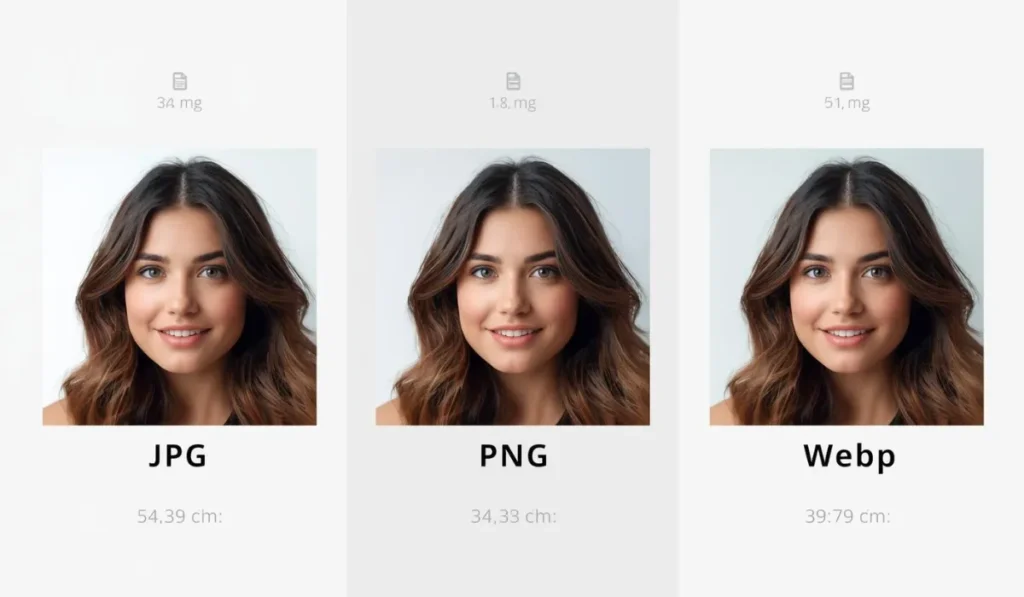
Advanced advice: Use the HTML element <picture> To serve modern formats such as webp or avif to the browsers that support them, automatically providing a backup in jpeg or png for old browsers. This guarantees the best experience for all users.
4. Compress to reduce weight without losing quality noticeable
After resizing and choosing the format, apply compression.
- Lossy compression (lossy): Ideal for PHOTOS (JPEG, WebP). Delete data imperceptible to the human eye. a quality of 70-85% It is usually the optimal point.
- Lossless compression (lossless): essential for Logos, icons and graphics with text (PNG, SVG). Reduces the size by keeping all the data in the image.
Recommended tools:
- for most users: Online tools like tinypng (also compresses JPEG) or squoosh (from Google) are excellent and easy to use.
- For batch processing or integration: Plugins for WordPress like smush or shortpixel, or desktop software like Adobe Photoshop (Save for Web) or GIMP (free).
Technical and content SEO optimization for images
Technical optimization tells search engines what’s in your image and how they should interpret it.
1. Descriptive file name
The file name is the first hint for Google. Instead of img_5432.jpg, Use a descriptive name with relevant keywords, separated by hyphens.
- correct example:
homemade-chocolate-cake-webp - Avoid: generic names like
image1.jpgorphoto.png.
2. Alternative text (attribute Alt) Optimal
the attribute Alt it is the most important To describe an image to search engines and users who use screen readers.
- Be descriptive and natural: Describes the content and function of the image. For a product image,
alt='Blue Running Shoes Model Velocity X for mixed terrain'It’s much better thanalt='sneakers'. - Avoid keyword stuffing: Google warns that this generates a bad experience and can make your site considered spam.
- For decorative images: If an image is purely decorative and does not provide information, you can use a
Altempty (alt='') for screen readers to ignore it.
3. Titles, captions and surrounding context
- TITLE (
title): Although less crucial than theAlt, can improve accessibility. It is displayed when you hover and can provide additional context. - Caption (Caption): The text that appears visibly near the image is powerful. Users often read them, and help Google understand the relevance of the image in the context of the page.
- page context: Google also extracts information about the image of the page title (H1), headers and text that surrounds her. Place the images near the relevant text.
4. Technical implementation for SEO
- Use the HTML element
<img>standard: Google indexes the images inserted with the tag<img src='...'>. Do not index the images that are set as background in CSS (for example,background-image: url(...)). - responsive images (
srcsetand<picture>): Use the attributesrcseton the label<img>or the element<picture>To serve different image sizes according to the user’s device. This is one Official best practice of Google and is crucial for mobile performance. - Sitemap (sitemap) of images: Create and send a specific sitemap for images in Google Search Console Help Google discover all the images on your site, especially those that might not be easily found through normal crawling.
- Structured data (schema.org): Add structured data to the pages (such as for recipes, products or articles) can make your images appear in Enriched results In Google images, with featured badges that increase the click.
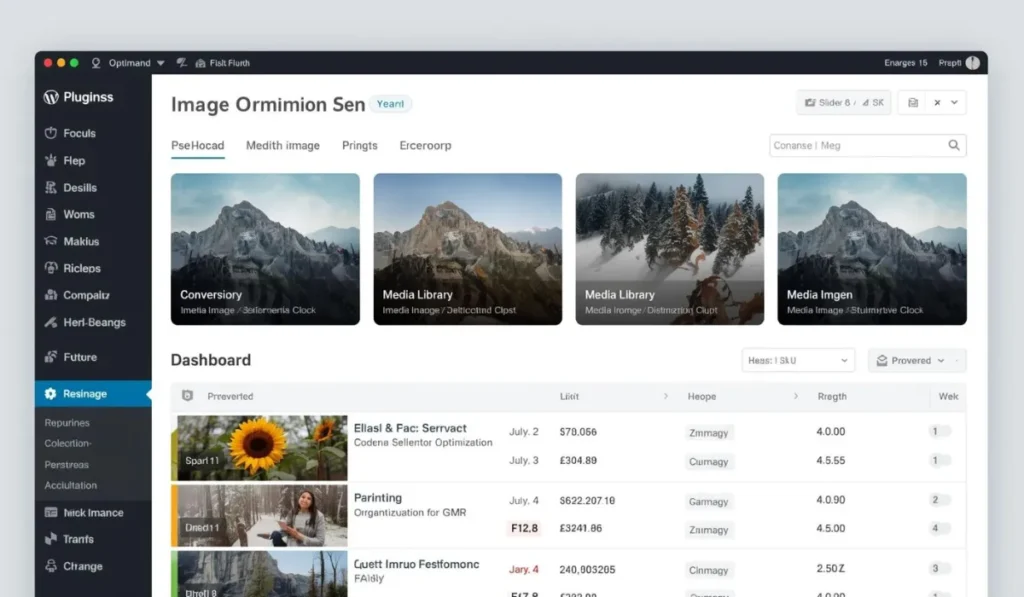
How to optimize images in WordPress efficiently
WordPress It is flexible, but requires configuration for automatic and consistent optimization.
1. Optimization with specific plugins
- SEO plugin Rank Math: Offer a Dedicated SEO module for images which can automate massive tasks like adding attributes
AltandtitleMissing based on the name of the file or the title of the entry, and allows to format the upper and lowercase letters of these texts evenly. - Compression plugins and modern format: shortpixel, , Imagify or smush They compress images automatically when uploaded and can convert them to webp, serving the appropriate format for each browser.
2. Key Settings in WordPress
- Media (average): Set the image sizes (miniature, medium, large) to Settings > Wherewithal to generate automatically resized versions.
- Deferred load (Lazy Load): Activate it. WordPress It includes it natively from version 5.5, and it is also offered by most cache and optimization plugins. Ensure that the main image (Hero) not Have a deferred charge so as not to impair the LCP.
How to check if your website images are well optimized
- Google PageSpeed Insights: Essential tool. Analyze the speed and offer concrete suggestions, pointing out images that can be further optimized and calculating the potential savings.
- URL inspection tool Search Console: Allows you to see exactly how Google tracks and renders a specific page, including your images, and if you find problems indexing them.
- Technical SEO audits: Tools like se ranking or Screaming Frog They can perform specific image audits throughout your site, identifying massive problems such as
AltMissing or too heavy images.
Conclusion and final checklist
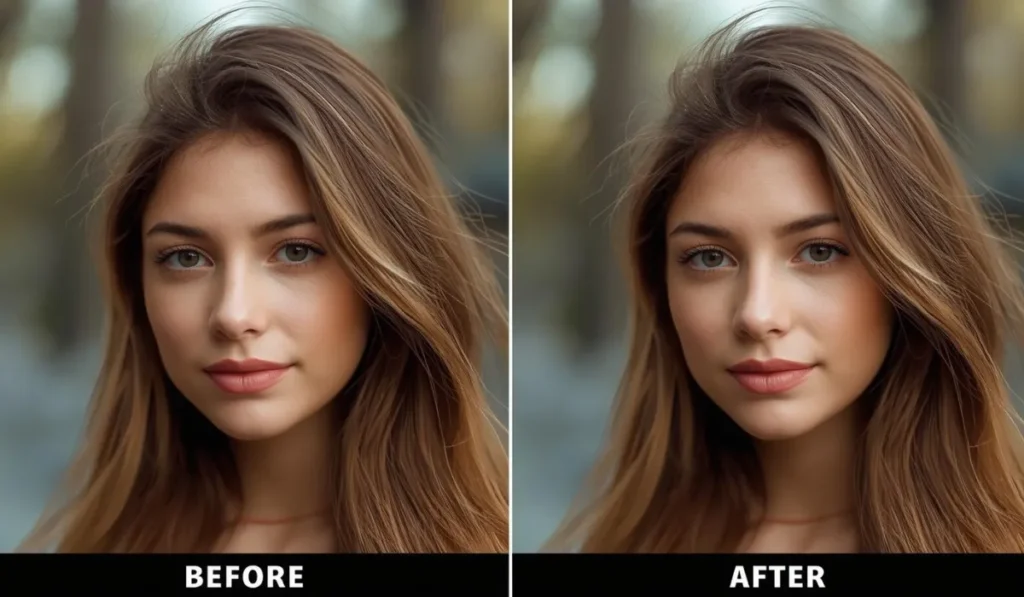
Optimizing images is a continuous process that combines web performance techniques and SEO strategy. It is not a single step, but a practice that must be integrated into your publishing workflow.
Quick checklist for each image:
- [ ] before going up: Is it a unique/relevant image? Did I resize it to the maximum display size? Did I compress it and convert it to webp (with backup)? Is the file name descriptive?
- [ ] When inserting on the web: The attribute
AltDescribe the content naturally and usefully? Is the image close to the relevant text? I usesrcsetfor responsiveness? - [ ] in full swing: Do I have the Deferred load (except for hero images)? Have I sent a Image sitemap A Search Console? Do I use a plugin to automate optimization in WordPress?
Following this guide on How to optimize my website images, you will transform one of the heaviest elements of your site into a powerful advantage for speed, user experience and your organic positioning.