
Tabla de contenido
Is FlexClip Good for Beginners?
In short: Yes, but with important caveats. This FlexClip review for beginners aims to give you an honest, no-fluff answer about whether this tool is right for you.
FlexClip is a powerful, browser-based video editor that excels at helping beginners create professional-looking videos quickly. It scores an impressive 4.5 out of 5 on Capterra from over 133 reviews and 4.6 out of 5 on AppSumo from nearly 500 ratings, indicating strong overall satisfaction.
Who is this tool for? As any thorough FlexClip review for beginners will tell you, it’s perfect for content creators, marketers, small business owners, and anyone who needs to produce social media videos, promotional content, or quick presentations without spending weeks learning complex software. Its drag-and-drop interface and massive template library (over 6,000 templates) make video creation accessible to absolute beginners.
Who should look elsewhere? No honest FlexClip review for beginners would recommend it for professional video editors needing granular control, advanced color grading, or multi-track audio mixing – FlexClip will feel limiting in those scenarios. It’s also not suitable for projects over 20 minutes – users report instability warnings when editing longer content. For complex film projects, tools like DaVinci Resolve or Adobe Premiere Pro remain the gold standard.
What Is FlexClip? A Beginner-Friendly Video Editor
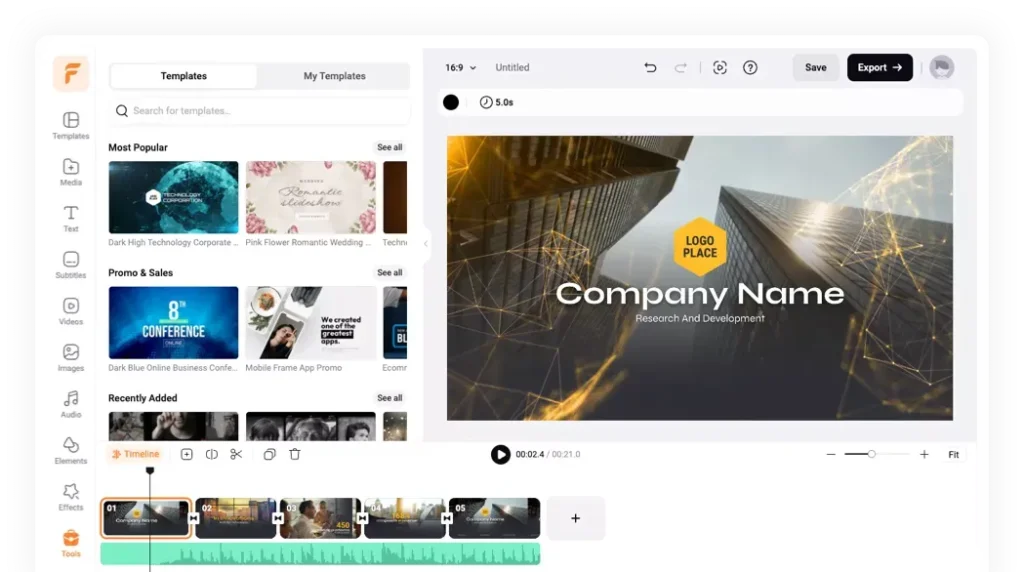
FlexClip is a browser-based online video editor created by Pearl Mountain Limited that requires no software installation. You can access it from any modern browser (Chrome, Firefox, Safari) on Windows or Mac.
What makes it unique is its focus on rapid video creation for marketing and social media. Unlike heavyweight desktop software, FlexClip prioritizes speed and simplicity. You don’t need to understand codecs, frame rates, or color spaces – you just pick a template, drag and drop your content, and export.
The platform serves several key audiences:
- Beginners who’ve never edited video before
- Marketers needing quick promotional content
- Small business owners creating social media presence
- Content creators producing videos for YouTube, TikTok, and Instagram
For businesses in the United States looking to combine video marketing with SEO, understanding SEO for business in the United States can help maximize the impact of your video content.
Key Features of FlexClip (2026 Update)
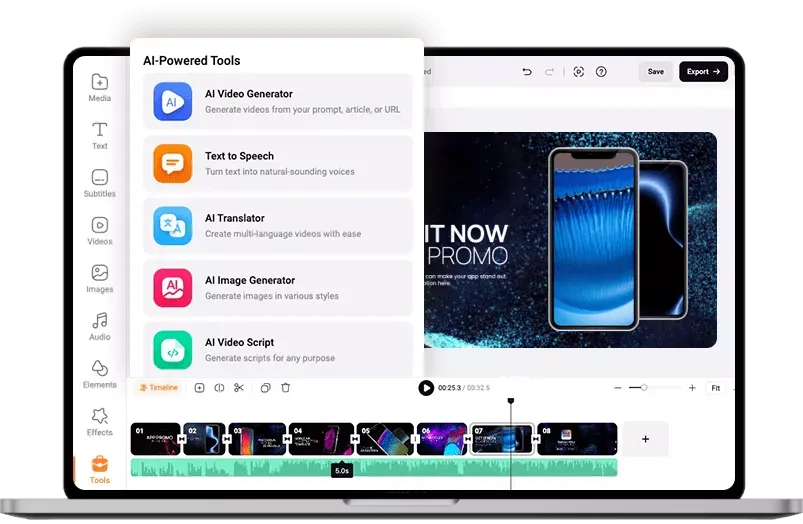
The 2026 updates have significantly expanded FlexClip’s capabilities, particularly with new AI features. This section of our FlexClip review for beginners covers everything you need to know.
AI-Powered Video Generation
AI Text-to-Video: Generate complete videos from text descriptions or blog URLs. This feature analyzes your content and automatically selects matching stock footage, adds music, and creates a coherent narrative.
AI Long to Shorts (New May 2026): Automatically repurposes long-form videos into engaging shorts for TikTok, Instagram Reels, and YouTube Shorts. It detects highlight moments, adds dynamic captions, and handles auto-reframing.
AI Logo Animation Maker (New March 2026): Creates professional logo animations from a single image, with 3D, glitch, neon, and particle effects.
AI Avatar (New June 2026): Generates realistic talking avatars with lip-sync and voice narration – perfect for faceless content creation.
Templates & Stock Library
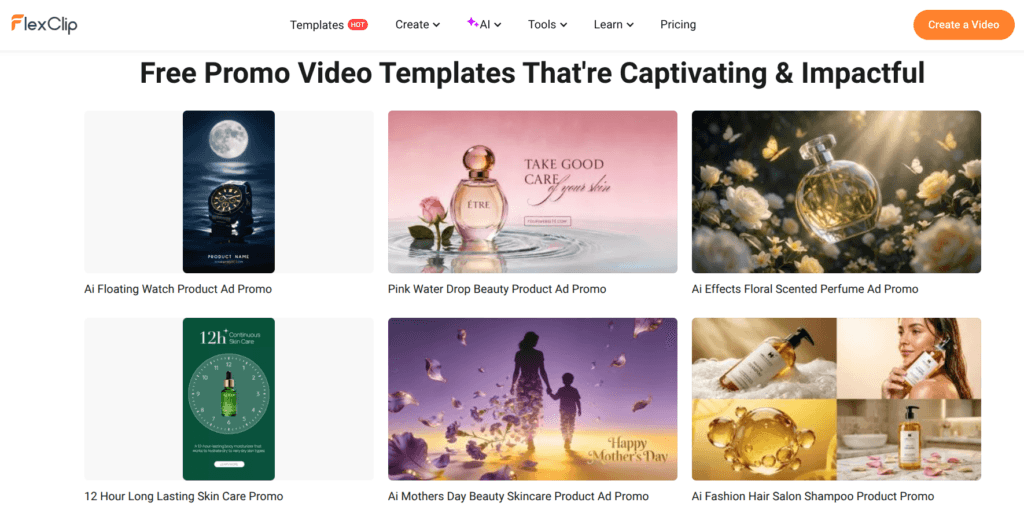
- 4 million+ ready-made templates covering various categories: social media, business, holidays, education
- Extensive stock library with millions of videos, images, and audio files
- Templates are organized by topic: Fashion & Beauty, Technology, Events, etc.
Core Editing Tools
- Drag-and-drop interface similar to Canva
- Video trimming and splitting – easily cut unwanted sections
- Zoom in/out to highlight details or create focus effects
- Audio editing with stock music or custom uploads
- Text overlay with customizable animations
- Transitions and overlays including lighting effects, summertime filters
Subtitling
Auto subtitle generation with 85-90% accuracy according to user reports. Choose from 20 dynamic subtitle styles. Note: Expect to do some manual correction.
Screen & Webcam Recording
Record screen and webcam simultaneously – ideal for tutorials, presentations, and educational content.
Export Options
| Feature | Free Plan | Plus Plan | Business Plan |
|---|---|---|---|
| Resolution | 720p HD | 1080p Full HD | 4K Ultra HD |
| Watermark | Yes | No | No |
| Max Length | 10 minutes | Unlimited | Unlimited |
| Stock Resources | 1 video/audio | 5 videos/audio | Unlimited |
To understand how AI tools like FlexClip fit into a broader SEO with AI strategy, check out the complete guide on combining artificial intelligence with search optimization.
Is FlexClip Easy to Use for Beginners? Our Honest Assessment
The marketing says “zero learning curve.” The reality is slightly different. This is perhaps the most important question any FlexClip review for beginners must address.
Multiple user reviews confirm that FlexClip is “not as intuitive as expected” for absolute beginners. One user described spending “the first 15 minutes frustrated and lost trying to locate basic editing tools” before finding their rhythm.
The actual learning curve: Most users need 30-60 minutes of exploration before feeling comfortable. The first video project with a template typically takes about 25 minutes for someone with some video experience; absolute beginners should budget 45-60 minutes for their first project.
The typical workflow is straightforward:
- Pick a template from the library
- Drag your media into the timeline
- Edit text and adjust timing
- Add music or voiceover
- Export and share
What makes it frustrating for beginners:
- No “Undo” button – every mistake is permanent. If you accidentally delete something, you must restart
- Can’t add multiple text blocks to one scene – you need to split the video into separate scenes
- No built-in tutorial – users must explore or find YouTube guides independently
Compared to professional tools: FlexClip is dramatically simpler than Adobe Premiere Pro, DaVinci Resolve, or even Movavi Video Editor Plus. It’s designed for speed, not depth.
Before committing to a paid plan, you might want to estimate your project costs to see if the investment aligns with your content creation budget.
FlexClip Pricing Explained
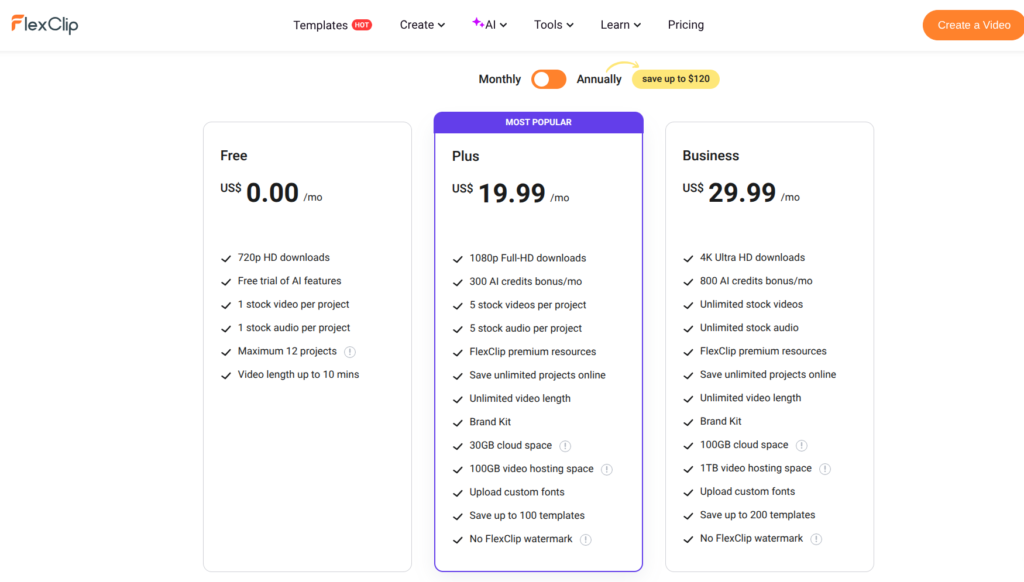
Understanding FlexClip’s pricing structure is crucial for deciding if it’s worth your money. Any balanced FlexClip review for beginners must be transparent about costs.
Free Plan: $0
- Export in 720p HD with a FlexClip watermark
- 1 stock video and 1 stock audio per project
- 5 AI credits for text-to-video, text-to-image, and AI script generation
- 1000 characters for text-to-speech
- 3 credits for image background removal
- Maximum 12 projects saved
- 10-minute export limit
- Free AI quotas for testing features
Plus Plan: $11.99/month (billed annually) or $19.99/month (monthly)
- Export in 1080p Full HD – no watermark
- 5 stock videos and 5 stock audios per project
- 300 AI credits per month (3,600 annually)
- Unlimited video length and unlimited projects
- 30GB cloud storage
- 100GB video hosting space
- Custom branding
- Custom font uploads
Business Plan: $19.99/month (billed annually) or $29.99/month (monthly)
- Export in 4K Ultra HD – no watermark
- Unlimited stock videos and audios per project
- 600 AI credits per month (9,600 annually)
- 100GB cloud storage
- 1TB video hosting space
- Everything in Plus plan
AI Plan: $9.90 for 300 credits
- For users who want AI features without the full editor
Is It Worth Paying?
The watermark alone makes the free plan unsuitable for business use. If you’re creating content for clients, YouTube monetization, or professional social media presence, you’ll need at least the Plus plan.
The Plus plan is the sweet spot for most users – it removes the watermark, doubles your AI credits, and unlocks unlimited exports. The Business plan is overkill unless you’re consistently exporting 4K content or using massive amounts of stock footage.
One budget concern: A user on Capterra noted that “the paid plans are a bit on the expensive side,” with the Basic plan at $8.99/month and Plus at $15.99/month according to their 2023 review. Prices have since increased, making the value proposition more complex.
For businesses evaluating multiple digital tools, a comprehensive SEO audit can help you prioritize where to invest your marketing budget.
Pros and Cons of FlexClip
Pros
✅ Beginner-friendly (once you learn the interface) – far simpler than professional editing software
✅ Browser-based – no installation, works on any computer
✅ 4 million+ templates ready to use
✅ AI tools save massive time – text-to-video, auto-subtitles, highlight detection
✅ Stock library integrated – no separate subscriptions needed
✅ Brand Kit maintains consistent logos, colors, fonts across projects
✅ No export length limit on paid plans
✅ Screen and webcam recording included
Cons
❌ No “Undo” button – one of the most common complaints in every FlexClip review for beginners
❌ Can’t add multiple text blocks to one scene – forces awkward splitting
❌ Free plan very limited – watermark + 720p + 1 stock media per project
❌ 20-minute stability warning – longer projects risk issues
❌ No mobile app – desktop browser only
❌ Voice clone sounds flat – “no laughing, smile voice, or change in tone or pitch”
❌ Auto-subtitle accuracy only 85-90% – requires manual correction
❌ AI features occasionally fail – text-to-video “sometimes fails to generate scenes properly”
FlexClip vs Competitors
FlexClip vs CapCut
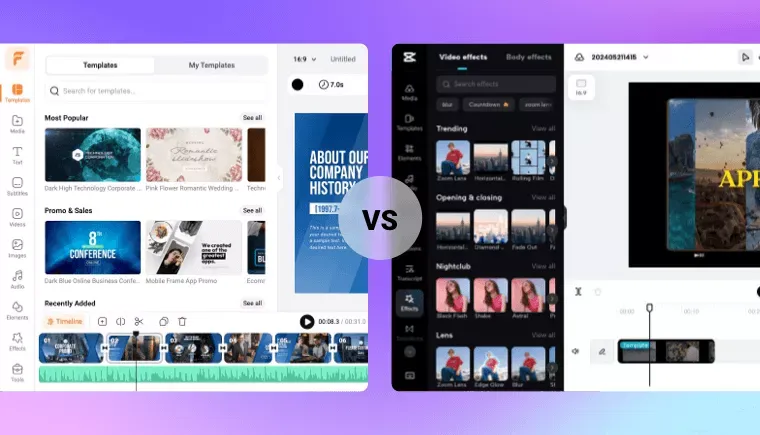
| Aspect | FlexClip | CapCut |
|---|---|---|
| Platform | Browser (desktop) | Mobile + Desktop + Browser |
| Focus | All video types | Social media content |
| Free Plan | 720p with watermark | No watermark, high quality |
| Learning Curve | Moderate | Easy |
CapCut is the better choice for TikTok and Instagram Reels creators, offering generous free features without watermarks. FlexClip excels at longer promotional videos and has better template variety. Try CapCut at capcut.com to compare.
FlexClip vs Canva Video
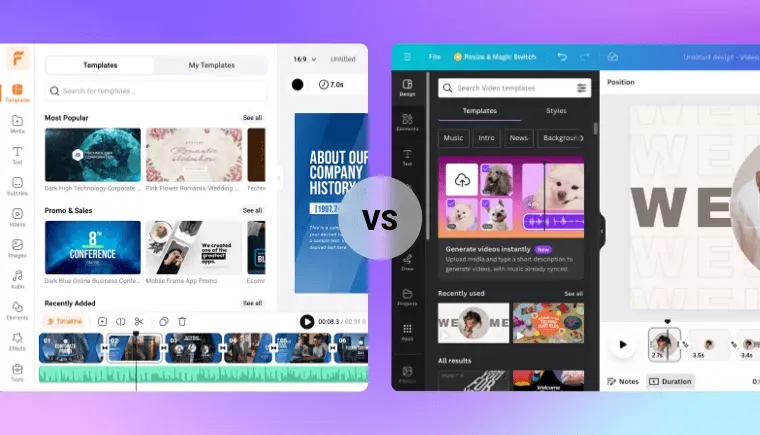
| Aspect | FlexClip | Canva |
|---|---|---|
| Focus | Specialized in video | Design + video ecosystem |
| Familiarity | New interface | Familiar for Canva users |
| Template Library | 4M+ video templates | Broad design templates |
FlexClip is more video-focused, with better video editing features. Canva is more versatile for users already in the Canva ecosystem. Explore Canva if you need a broader design tool.
FlexClip vs VEED
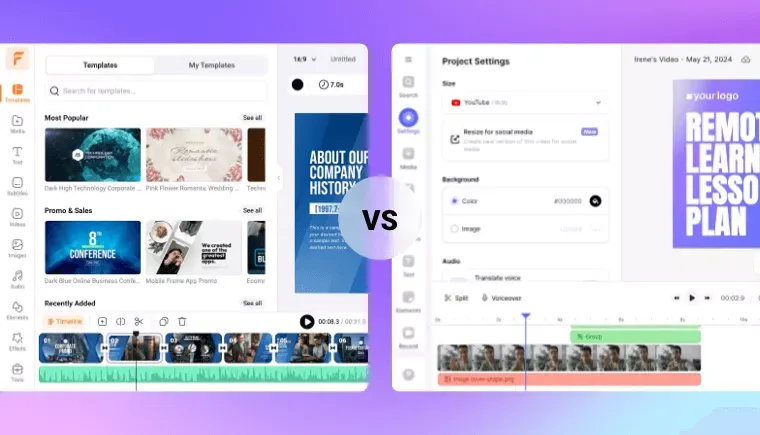
| Aspect | FlexClip | VEED |
|---|---|---|
| Strength | Templates & speed | Subtitles & AI audio |
| Subtitle Accuracy | 85-90% | Industry-leading |
| AI Tools | Text-to-video, avatars | Virtual avatars, script writing |
VEED is superior for subtitle-heavy content and collaboration features. FlexClip is simpler and more affordable. Check VEED.io for advanced subtitle capabilities.
Overall comparison: A 2025 ranking of video editors positions FlexClip as the “most affordable full-powered online video editor,” offering robust features at a budget-friendly price.
If you’re a WordPress user creating video content, understanding the best SEO plugin for WordPress can help you optimize your video pages for search engines.
Best Use Cases for FlexClip
FlexClip shines in specific scenarios:
- YouTube content creators – especially small channels needing quick content
- TikTok, Instagram Reels, and YouTube Shorts – with the AI Long to Shorts feature
- Small business marketing – promotional videos, product demos
- Affiliate marketing – converting blog posts to video
- Social media management agencies – producing multiple videos per day
- E-commerce product presentations – quick showcase videos
- Corporate presentations and explainer videos
- Faceless content creators – thanks to AI avatar and voice clone features
One user’s powerful example: “With my tech stack, I’m able to create amazing videos right in the browser.” This highlights FlexClip’s strength in the creator tool ecosystem.
For freelancers looking to add video editing to their service offerings, explore the 25 best freelance skills for 2026, which includes video editing as a high-income skill. Additionally, if you’re wondering how to get freelance clients, offering AI-powered video services can be a powerful differentiator.
Real User Experience (What You Won’t See in Ads)
This section of our FlexClip review for beginners shares what real users actually experience.
What Users Actually Say
The Good:
- “One of the best tools I’ve bought from Appsumo… absolutely amazing product!”
- “Once you get the hang of the tools and functions, you can create SO much”
- “The interface is clean, beginner-friendly and it makes it easy to create professional-looking videos quickly”
The Frustrating:
- “Spent most of the day on a project, only to click the wrong button and lose it all” – this user emphasized “save a copy of your work as you go”
- “Tutorials are rare and for people with experience in video editing, it’s not like a walk in the park”
- “The tools within the editor are not ‘self-explaining'”
The 20-Minute Problem
A critical limitation: “You cannot go beyond 20 minutes without receiving messages that you need to upgrade your memory before running into issues!”
This applies regardless of your plan. If you need to create longer content, this could be a dealbreaker. Users report upgrading their computer hardware specifically to accommodate this limitation.
Where FlexClip Falls Short
For some users, FlexClip simply doesn’t work well enough:
- Filler word removal creates artifacts (e.g., removing “so” leaves an “s” sound)
- Voice clone sounds completely flat and unnatural
- AI credits sometimes don’t appear correctly in accounts
- Customer support receives complaints about slow responses
For a deeper understanding of what to expect when building an online business with AI tools, read this comprehensive guide on how to make money with AI and online business ideas that leverage content creation.
Should Beginners Use FlexClip?
Yes, but choose carefully based on your needs. After completing this comprehensive FlexClip review for beginners, here’s our final recommendation.
FlexClip is absolutely worth it for:
- Content creators who need quick turnaround on videos
- Businesses producing regular social media content
- Anyone creating 10-20 minute promotional videos
- Users who value templates and AI automation over granular control
It’s not worth it for:
- Projects over 20 minutes (stability issues)
- Professional video editing requiring advanced color grading or audio mixing
- Users who can’t handle an Undo button – mistakes are permanent
- Anyone needing a mobile app – desktop browser only
The Smart Buying Decision
Start with the free plan [https://www.flexclip.com/] to test the interface and see if the workflow suits you. Create 2-3 projects. If the watermark and limitations are acceptable, stay free. Most users will find the Plus plan at $11.99/month is the right upgrade – it removes the watermark and removes export limits.
Alternative recommendations:
- For TikTok/Reels content: Try CapCut (free, no watermark)
- For advanced subtitling: VEED.io
- For design-first creators: Stick with Canva Video
- For professional editing: DaVinci Resolve (free, powerful) or Adobe Premiere Pro
The Bottom Line
Based on everything in this FlexClip review for beginners, it’s a solid, capable online video editor that delivers on its promise of fast video creation. Its massive template library and growing AI feature set make it a compelling option for beginners and marketers. However, the lack of an Undo button, the 20-minute stability warning, and the limited free plan are significant drawbacks worth considering.
Try FlexClip free [https://www.flexclip.com/] and see if it fits your workflow. For $11.99/month, the Plus plan offers excellent value for content creators who need professional-looking videos without the learning curve of desktop software.
Ready to Learn More?
If you’re building a content creation business or improving your digital marketing skills, these resources can help:
- How to Automate SEO with AI – Complement your video content with SEO automation
- What is SEO? Complete Guide – Understanding search optimization
- SEO with AI Guide – Advanced AI applications for rankings
- ChatGPT Business Ideas – 25+ ways to make money with AI
- How Long Does It Take to See Results with SEO – Realistic timelines for content marketing
- AI Automation Business – Build scalable systems with AI
Free Tools for Your Business
- SEO Audit Tool – Get a comprehensive analysis of your website’s performance
- Project Cost Calculator – Estimate costs for web design, SEO, and digital marketing
- Crypto Market Tracker – Monitor 1000+ digital assets in real time